Anti-Aliasing in 360/ 180 Degree Renders in Unreal Engine with Lumen
How to get the best quality 360 and 180 Degree renders from Unreal Engine using anti-aliasing
Last updated About 1 month ago
This guide is about using anti-aliasing with Lumen and DirectX12 graphics. If you are using Path-Tracing see the separate guide.
Unreal continues to improve it’s anti-aliasing output in each new Engine release, so for the best results, use the latest Unreal Engine version.
Overview
Anti-aliasing cleans up edges and reflections that would otherwise look unnaturally crisp or jagged.
It works by taking samples from parts of the pixel, or from previous/ future frames, and using those samples to smooth out colors and details (either within a frame or between multiple frames).
It needs reference frames to work effectively, so you need to add warm-up frames by extending your camera cut to add frames before your render sequence begins (see below).
Getting the best image results may require trying different anti-aliasing approaches such as using TSR, DLAA or None, changing your warm-ups and adding temporal and spatial samples. This guide will show you how.
Temporal and Spatial Samples
There are two types of samples used to control anti-aliasing:
Temporal Samples: Are taken across multiple frames which helps smooth out moving objects or effects caused by moving cameras.Spatial Samples: Are taken around the area of a pixel to determine the best average of colors with the goal of smoothing transitions between the colors to stop jagged lines.
Epic says you only have two reasons to increase temporal or spatial samples in Movie Render Queue: (more detail below).
If you see bad quality in your
motion blur, you should increasetemporal samples.If you see bad
anti-aliasingthat isn'tmotion bluryou should increasespatial samples, in which case you should setAntiAliasingtoNone.
TSR
Unreal Engine has a variety of anti-aliasing methods each of which have different benefits.
TSR (Temporal Super Resolution)is the defaultanti-aliasingmethod you should start with inMovie Render Queue.It normally will be enabled by default in your
Project Settingsso you only need to modify it inMovie Render Queueif you want to add additionalsamples(as explained below).As Epic recommends: "you should only disable this [
TSR] in MRQ [Movie Render Queue] if there is a visual reason to do so, there are a large number of rendering features that work best... and requireTSRlikeLumen. "
DLAA
Deep Learning Anti-Aliasing (DLAA)is a system developed by NVIDIA which uses a variety of ai trained algorithmic methods to improve theanti-aliasingin yourrenders.You can try it as an alternative to
TSRas it can offer better visual results and reduce the shimmering thatTSRcan sometimes create.DLAA can be used with both
spatialandtemporal samplesas explained below.To do so, download the
DLSSplugin from this link and add to yourProjectorEnginepluginsfolder, then inMovie Render Queueadd theDLSS/ DLAAsection and selectDLAA:
Super Sampling
Super-sampling is the method of rendering at a higher resolution than your target output to give your anti-aliasing algorithm more sample pixels to select from.
This can be a very effective way to increase detail and clarity in your renders and sometimes can be faster to render than increasing anti-aliasing samples:
Ensure that
TSRis selected as your anti-aliasing method (this will not work withDLAA):
Add a
r.screenpercentageConsole Variableof>100%to yourMovie Render Queuesettings.The higher the number, the more detail you will get but the longer your render time (too high and you will need to use
tilingto prevent VRAM crashes):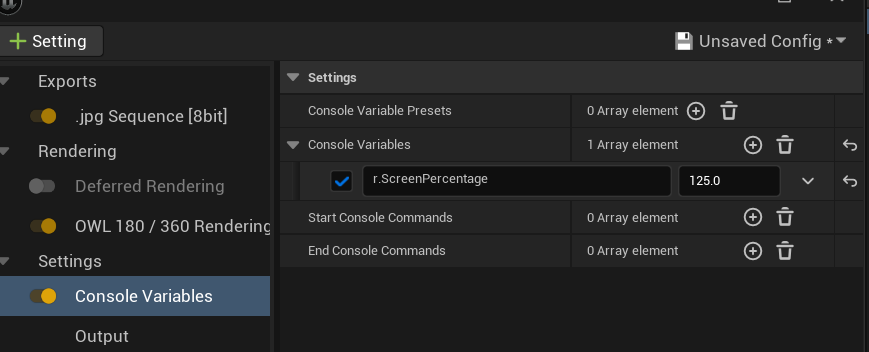
Upsampling
Upsampling/ upscaling is an anti-aliasing method that lets you increase performance by using AI upscaling to render a % of the pixels in your output.
Unreal offers upscaling via its
TSRanti-aliasingmethod, which works with NVIDIA and non-NVIDIA GPUs; orYou can use NVIDIA’s
DLSSsystem, which can provide better performance on NVIDIA GPUs.
TSR
Select
Temporal Super Resolution (TSR)either in yourProject Settingsor in yourMovie Render QueueAnti-Aliasingsettings (Lumenrenders only).Use a
Console Variableto change yourscreen percentageto<100%(You should try90%,75%etc and check if you are happy with the visual quality vs. the faster render time):
DLSS
Download the
DLSSplugin from this link and add to yourProjectorEnginepluginsfolder, then inMovie Render Queueadd theDLSS/ DLAAsection and selectDLAA:Select any of the other
DLSS Qualityoptions (in the drop-down below):DLSSwill automatically change yourscreen percentagesettings as follows:(Ultra Quality: 77%,Quality: 66.7%,Balanced: 58%,Performance: 50.0%,Ultra Performance: 33.3%):
Detailed Guidance
Summary Tips
Start with
TSRenabled and only increaseanti-aliasing samplesif you have one of these issues:If you are rendering a static shot and
TSRstill causes jagged edges, setanti-aliasingtoNoneand addspatial samples.In a moving shot, if you need more clarity in your motion blur, keep
TSRon (or useDLAA) and addtemporal samples(>11is unlikely to be worthwhile).In a moving shot, if you need to clean up jagged edges, set
anti-aliasingtoNoneand start with1spatial sampleand3temporal samples. Add more in single increments until your issue is fixed.
You can try
DLAAas an alternative toTSR,as it may fix your issue without having to increaseanti-aliasing samples.If you are unhappy about image crispness, use
TSRand addconsole variabler.ScreenPercentagewith value>125. Rendering morepixelslike this may be faster than adding moreanti-aliasing samplesto get the same visual impact.Check the
lightorpost-process volumesettings forLumen, shadows, reflections, refractions, ambient occlusion, global illumination likesamples per pixelorqualityas these can solve issues without having to increaseanti-aliasing samples(faster render times).Always use excess frames in your
Camera Cutas a warm-up, soLumen, physics effects and particles can settle correctly.Delete all
console variablesapart fromFlush Grass Streaming,unless you have a reason for them being there.Check recommended console variables below for
motion blurandocclusion.For a full explanation see the sections below.
Anti-Aliasing
By default, your
Movie Render Queueanti-aliasingwill follow yourProject Settingswhich, Unreal sets toTSRas standard:
If you want to modify
anti-aliasing,then you need to add the section inMovie Render Queuesettings where you can control individual values andoverrideyourProject Settings:
Spatial Sample Count:Use this to set a value for the number ofspatial samplesthat youranti-aliasingmethod will take (more info below).Temporal Sample Count:Use this to set a value for the number oftemporal samplesthat youranti-aliasingmethod will take (more info below).Override Anti Aliasing:This overrides yourProject Settings, by selecting a newanti-aliasing method.In general,
TSRis recommended as a default andNoneis only recommended if you want to increasespatial samples(see below).
Use Camera Cut for Warm Up:This is an extremely important setting which makesMovie Render Queueprocess realframesfrom your360 camera/ componentbefore starting yourrender.This ensures things like
motion vectorsare being calculated before yourrenderbegins, which is essential for the accurate rendering of moving objects or physics based elements like hair/ cloth/ particles.For how many
framesto add in yourcamera cutbefore yourrenderbegins, see the guide below.If this option is
untickedand/or you have no excessframesin yourcamera cutthen yourrenderwon’t have anyframesfrom your camerafrustrumto create physics data ortemporal samplesfrom, resulting in poor visual output.
Render Warm Up Frames:This should normally be ticked in addition toUse Camera Cut for Warm Upbecause it ensures that thewarm up framesin yourcamera cutare actuallyrendered(and then discarded rather than being saved to file).Certain systems, like GPU particles, need to be
renderedto perform theirwarm upeffectively.If this option is
untickedthen even if you have a longcamera cutto use for yourwarm up frames, your renders might still be poor visual quality.
Advanced:This is an alternative, less effective, approach thanUse Camera Cut for Warm Up. It is not recommended.Instead, what you do is input a number of
framestowarm-upin the boxes below.It is less effective than using your
camera cutbecause it doesn’t reference to any actual priorframesthan the one you are about torender(because the engine doesn’t have acamera frustrumto work from so doesn’t know what thoseframeswould be).It just iterates between
frames0and1for however manycountsyou set in the value below to build upsample data.For this reason, this method is likely to result in poor visual quality unless you have a static camera, no moving objects and no physics based elements.
Render Warm Up Count:Not Recommended. This sets the number of GPU cycles which your warm-up will run through before you start your render.These cycles happen on a single moment, so time doesn’t pass in the scene; they give temporal effects like TSR and Lumen a history to work from, but they will not settle particles, physics or cloth.
Although the frames are discarded pre-render, their working memory is retained which can cost multiple GB of non-flushed VRAM, so this option is not recommended as it reduces both render speed and makes VRAM crashes more likely.
If you are have ticked
Use Camera Cut for Warm Up, you can leave this at0(because yourcamera cutwill be used instead).
Engine Warm Up Count:This sets the number of CPU cycles which your warm-up will run through before you start your render.The cycles happen as frames of real time passing in your scene which means they settle particles, physics, cloth, animation and level streaming.
These frames are not actually rendered unless
Render Warm Up Framesis also ticked.They are not held in working memory so this method does not cause a material increase in VRAM and so is a valid alternative to using your
Camera Cutfor yourwarm up.If you want to use this option, remember to tick
Render Warm Up Framesas well.If you are have ticked
Use Camera Cut for Warm Up, you can normally leave this at0(because yourcamera cutwill be used instead).
DLAA
Deep Learning Anti-Aliasing (DLAA)is a system developed by NVIDIA which uses a variety of AI trained algorithmic methods to improve theanti-aliasingin yourrenders.NVIDIA has very sophisticated algorithms which can distiguish between noise and detail and so offer a higher quality of lighting effects and reduce blurring.
You can use
DLAAas an alternative toTSRby downloading and enabling thepluginand then adding it as a setting inMovie Render Queue(it will automatically replace whatever anti-aliasing method you have set):You should still use the
anti-aliasing settingsinMovie Render Queuefor yourwarm-upsand to addtemporalandspatial samples(as explained above).
Other Important Settings
Unless you have a specific requirement, adding more anti-aliasing samples will just increase your render times for nothing!
Try changing the settings below before adding anti-aliasing samples (you can also try the console variables below):
Shadows
"If you see chattering in the shadows consider raising the
Samples Per Pixelon thelights.If you have any softness to your shadow at all you’ll want to consider raising it above
1. Especially forArea Lights:"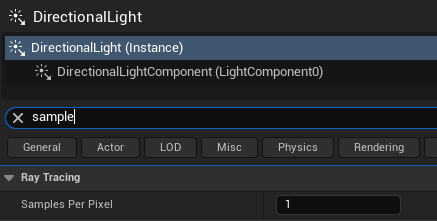
Reflections
"If you see noise in the reflections then try modifying the settings in the
Post Process Volume... They all have their ownSamples/Quality:"
Refractions, Global Illumination, Ambient Occlusion
"If you see noise in your
Refractions,Global Illumination, orAmbient Occlusion, that needs to be addressed in thePost Process Volume, notMovie Render Queue."Address this by modifying the samples/ quality of these elements in your
Post Process Volumesettings: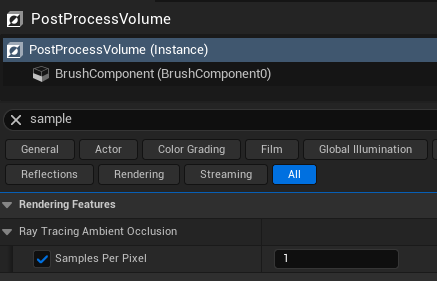
Motion Blur
In
Movie Render Queue, add theConsole Variabler.MotionBlurSeparableand set the value to1.This will smooth out
Motion Blurin a second dedicated render pass without requiring a full render:
Occlusion
If objects are popping into view, this may be due to
occlusion settings, which are optimised for real-time playback and so not necessary in renders.Adding the
console variabler.AllowocclusionQuerieswith value0can fix this:
Image Crispness
If you can’t get the level of detail you want in certain areas, then increasing the number of pixels that your
anti-aliasing methodcan choose from, viahigh resolution downscalingcan help with this.Ensure
TSRis selected and then addconsole variabler.ScreenPercentagewith value>125to render each face at 125% of your set resolution.This will increase your render times but it can be faster than adding the
anti-aliasing samplesyou would need to get the same visual quality: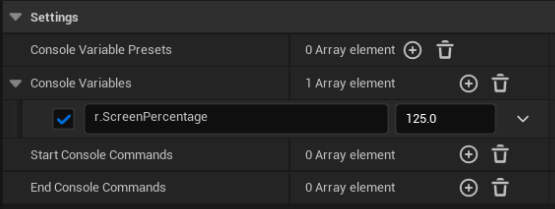
Warm-Ups
Warm-ups are essential for getting a high quality render, especially if you have moving images, complex lighting or physics based effects:
Using Camera Cut as Warm-Up
You should add a number of
framesto yourcamera cutinSequencerbefore the frame where you want yourrenderto start.You should then enable
Use Camera Cut for Warm Upin yourMovie Render Queueanti-aliasingsettings so you use thecamera cutframes for yourwarm-up.Using
camera cutframesfor yourwarm upis important for two reasons:It means the engine is processing real frames, which is essential for accurate
renderingof moving objects or physics based items like hair/ cloth/ particles.Your
warm upwill use thefrustrumof yourcamerato create samples so motion based effects will be rendered much more accurately.
If you are using any GPU based physics effects you need to also tick
Render Warm Up Frames, which means the engine will actuallyrenderand then discard thewarm-up framesto ensure those elements run correctly when yourrenderbegins.
How Many Warm Up Frames to Use
Your
warm-up frame countneeds to be at least as long as the number oftemporal samplesyou have set, but likely longer:You need at least the same
framesas yourtemporal samplesbecause otherwise the engine won’t be able to sample from realframesfor motion effects etc.
Ideally you should have more frames because different Unreal processes need more to generate data to work effectively:
Lumen needs
>32 framesto find and stabilisebounce lighting.Cinematic shots likely need
>64 framesto ensure correct motion effects etc.If you have complex particle effects or physics then you likely need
>128 framesto let the effects settle.
If you are using
animations,particlesetc you need to extendanimation,transform,particle activationtracksetc into yourwarm-upframesinSequencer, otherwise those effects won’t be active during yourwarm-up framesand so won’t be correct when your render starts.To previz this, use the
Evaluate Sub-Sequence in Isolationoption in yourSequencertoolbar: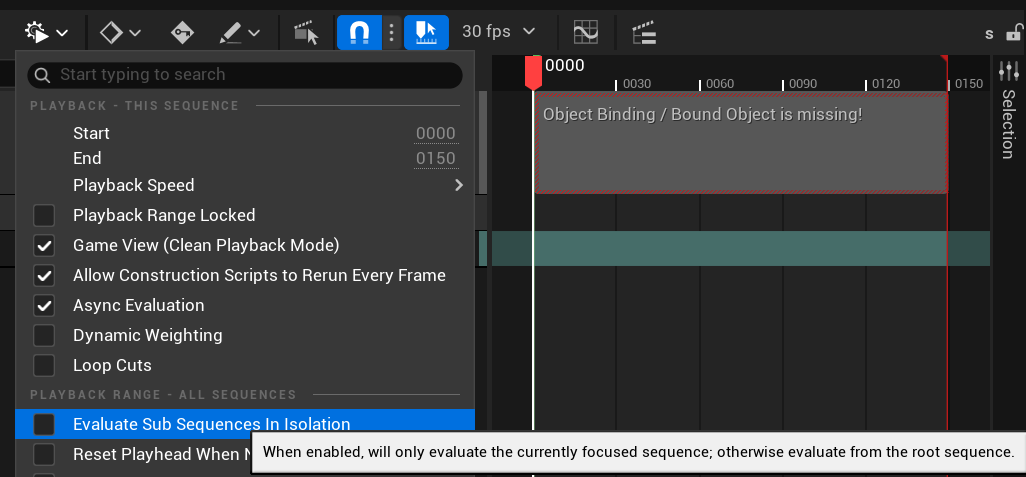
The number of
framesyou need will also depend on yourframe rate, with a larger number required for higherFPSoutput.For example, if you are rendering at
30FPSand it takes two seconds for a cloth effect to settle then you need>60 framesfor yourwarm-up.But if you
renderthe same shot at60FPSthen you will need to double yourwarm-up framesto>120.
You can see more guidance from Epic here.
Temporal Samples
When to Increase Temporal Samples
If you see bad quality in your
motion blur, you should increasetemporal samples.For fast-moving scenes you will need a larger amount of
temporal samplesbut increasing them above8will have a big effect on your render time.
How to Increase Temporal Samples
Use
Temporal Super Resolution (TSR)as youranti-aliasingmethod when you increasetemporal samples.Increase
temporal sampleswithout increasingspatial samples: "There isn’t any advantage to mixing temporal and spatial samples. Do not mix and match."Increase
temporal samplesif you don't see smoothmotion blur: "Faster moving shots will need moreTemporal Samplesthan slow ones."Use odd numbers (
3, 5, 7, 9, 11) for yourtemporal samplecount: "it's best to keep your sampling to odd numbers so that you get asampleon thekeyframefor any animated impact or change or direction".Don’t increase
temporal samplesabove12: "anything past 12ish is not really visibly seen... you get diminishing returns and should consider setting the AA method to None."
Spatial Samples
When to Increase Spatial Samples
Epic recommends to increase spatial samples only as a last resort when all the following criteria are met:
You are rendering a moving image and have to increase your
temporal sample countabove12.You are
renderingastatic imagewithouttemporal samplesand withTSRon, you still are still getting jagged edges or flickering.You have tried changing the
other settingsforShadows,ReflectionsandGlobal Illumination(above).
For example:
"If you had a really hot, thin piece of geometry and it's really hard to get the outline clean.
Or a bunch of think lines stacking up on one another going back in Z-axis from the camera.
These are hard problems to handle and you might have to count on
spatial/temporal samplesto clean up the line."
How to Increase Spatial Samples
In that case, you will bypass using a predictive anti-aliasing algorithm and brute force generating the pixels by taking lots of samples and then rendering them together:
Tick
Override Anti Aliasingand setAntiAliasing MethodtoNone.If you are rendering a static image, then you don’t need to add
temporal samples, so just addspatial samplesuntil you have the image you need.If you are rendering a moving image, set
spatial samplesandtemporal samplesin incremental amounts, running testframerendersto see if it solves your issue.Remember that
spatialandtemporal samplesare multiplied:At each
temporal sample, the engine will take your fullspatial sample count.For example, if you set
13temporal samplesand8spatial samples, you willrender8spatial samplesat13temporal positions=104totalsamplesfor everyframe!That will result in long render times.
For that reason, as little as
1spatial sampleand3temporal samplescan potentially achieve an image as clean asTSR.You should think about your visual issue:
If it is from motion, such as incorrect
motion blur, then you should add more temporal samples than spatial samples.If it is a piece of geometry with jagged edges, then you should should start with the minimum effective
temporal samplesand addspatial samplesuntil the issue is resolved.
However, for complex geometries as mentioned above, you are likely to need more samples to get the visual quality you needs.
Console Variables
Console Variables (CVars) aren’t directly related to anti-aliasing but they do affect your renders and so they should be checked if you are having issues:
Remove all
Console Variableoverridesunless you have a specific reason you are including them.If you see any large low-frequency noise, that's from
Denoisers. You have to find the rightDenoiser(Ambient Occlusion,Global Illumination,Reflections, etc.) and shut it off.If you disable all the options in the
Game Overridessection, aside fromFlush Grass Streaming, that will get you as close as possible to what you are seeing in the EditorViewport(assuming you don’t have anyCVar overridesinMovie Render Queue).The geometry
LOD settingshere will not override anythingNanite. They are only for non-nanite actors.
Was this helpful?
Still need help? Ask the team