Path-Tracing in 360/ 180 Degree Renders in Unreal Engine
How to get the best quality 360 and 180 Degree renders from Unreal Engine using Path-Tracing
Last updated 4 months ago
Overview
Path-Tracer continues to be improved with each new Unreal Engine version so for the best results we recommend to use the latest Engine release.Path-tracing is recommended for more advanced users as it requires a lot more manual configuration than Lumen, is much harder to previsualise and so takes a lot longer to get a perfect final image.
Unreal Engine’s Path Tracer generates images by calculating the actual physics of light rays bouncing through your scene rather than guessing pixels using intelligent algorithms like Lumen:
It is useful for rendering images that match physical light in a scene and is particuarly useful for scenes that require complex refraction, translucency, shadows and light stability.
It can also be used to double-check your
Lumenoutput, which uses algorithms to guess the rendered content, and adjustLumensettings to be closer to natural light if necessary.
Path-traced renders take a lot longer >10x than Lumen because of the time taken to calculate the light-rays and so is generally reserved for content like Architectural Visualisation, where its specific capabilities are required.
Getting the best image results requires combining settings in a Post Process Volume, Anti-Aliasing and Denoiser. These work differently than in Lumen renders:
Your
Post Process Volumeis used to set up which elements of your scene will bepath-tracedand your settings for how yourlight-rayswill behave.Anti-aliasingdetermines the actual number oflight raysyou will use for eachpixel.The
Denoiseris a predictive algorithm used to clean up the final image created by yourlight rays,removing excessively bright spots (fireflies) and smoothing overpixelsfor which you don’t have enoughlight raysto create precise color information.
Editor Set-Up
Required Settings
In
Project SettingsSearch
RHIand selectDirectX12.Search
Ray Tracingand enablePath TracingandSupport Hardware Ray Tracing.You will need to restart Unreal if these are not already selected.
Go to
Edit>Pluginsand searchDenoiseand ensure these plugins are ticked. Each should be used in different content scenarios which are explained below: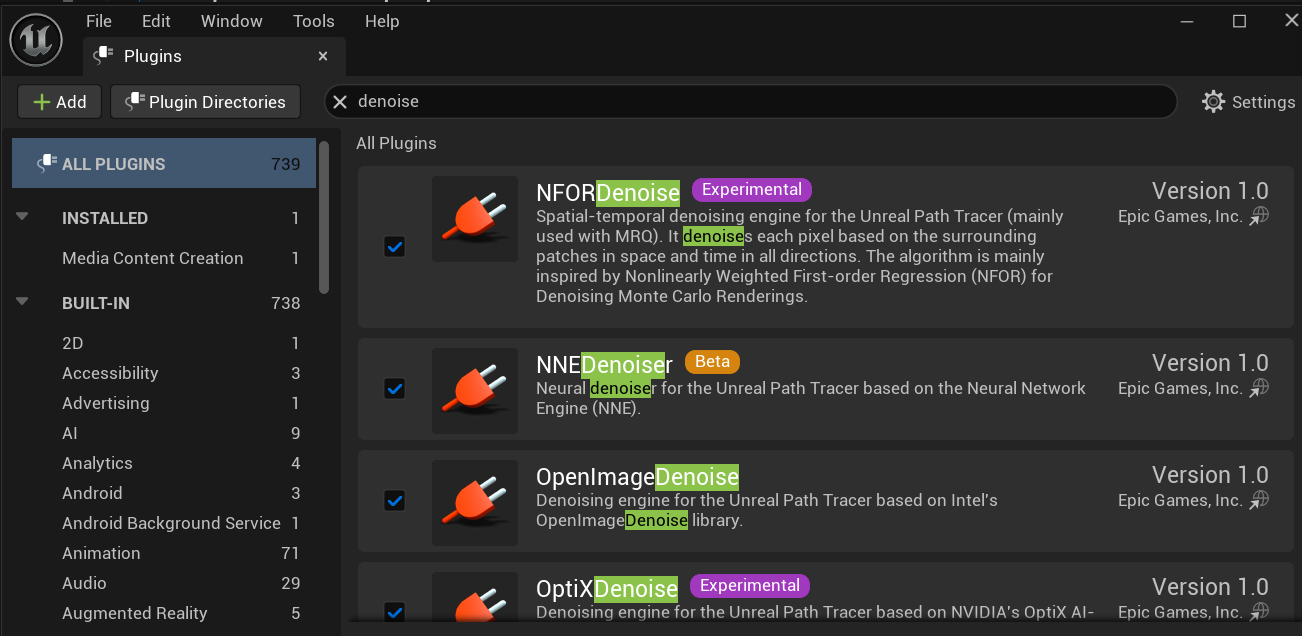
In
Editor, go toView Modesand selectPath Tracing: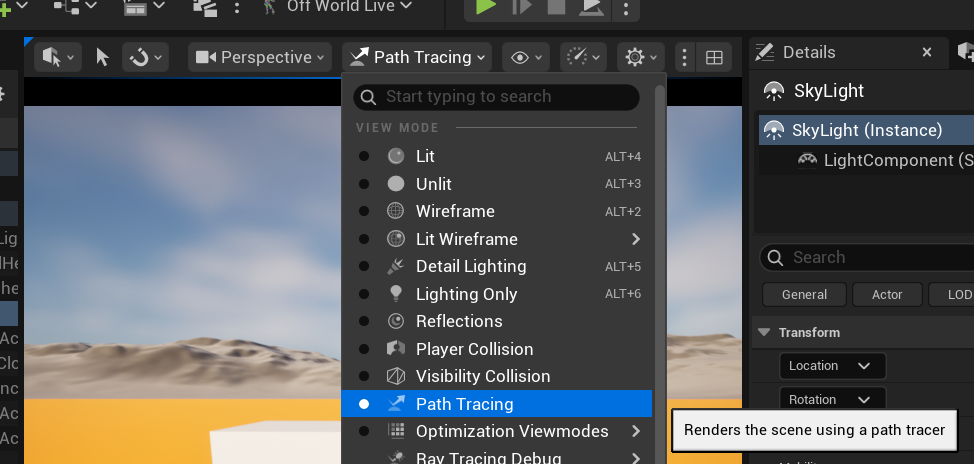
You will see a progress bar in your Viewport as the light samples calculate:

When the progress bar finishes, you will see a final
path-tracedimage in yourViewport. Each you move your camera, this will have to recalculate: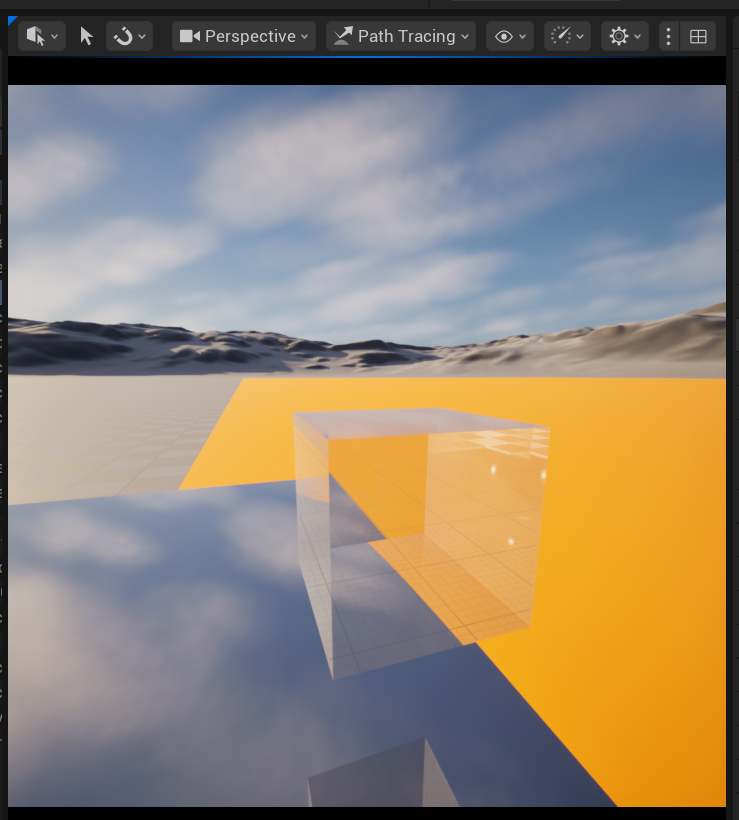
Skylight, Fog, Atmosphere
There are different options for how to control these elements, depending on your needs/ preferences, which you can see the Unreal documentation here.
Post Process Volume
If you are only using the OWL 360 Camera/ Component (and not the Viewport) for previz then you can change the Path-Tracing settings below in the 360 Camera Details panel.
We recommend to use a Post Process Volume because it means the Viewport and the 360 Camera look the same, which makes content creation easier:
Either add a new
Post Process VolumefromPlace Actors, or search for your existing one inOutliner.In its
Detailspanel search infinite and tickInfinite Extent (Unbound)
Search
Exposure, changeMetering ModetoManualand change theExposure Compensationto the same value as your360 Camera/ Component(by default this is set to10):This will make your
Viewportpreview look the sameas your 360 camera.This is also important for your final render because if you have
auto-exposureenabled theViewportcan look different toMovie Render Queue.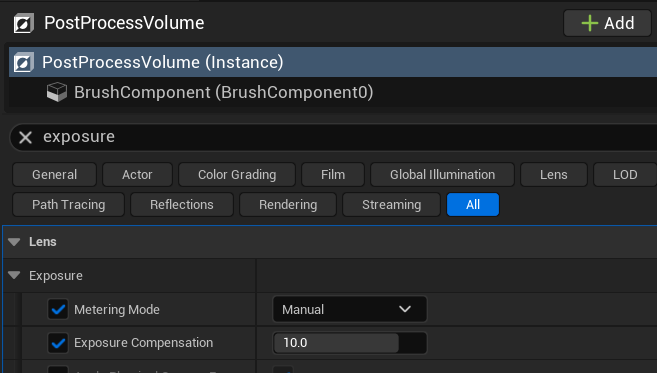
Now search for
path-tracingin theDetailspanel to change your settings which will let you preview your output inViewportand theOWL 360 Camera/ Component.All these settings will pass through to
Movie Render Queueapart fromSamples Per Pixel, which is the same asspatial samples,and will be overriden by youranti-aliasingsettings inMRQ: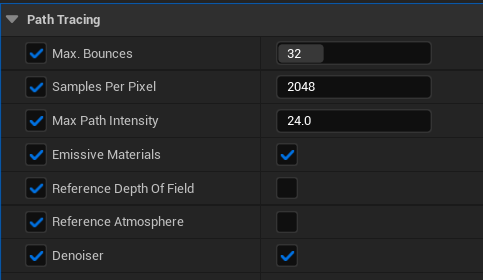
Max Bounces:This determines how manybounceseachlight raymakes before ending it’s journey.32is already a high value.You can increase this number if you need more light in dimly lit areas.
Samples Per Pixel:This determines how manylight raysare fired into eachpixel, the moresamplesyou add, the more detailed (less grainy) your image will be.This
valueis only used in yourEditorpreview, inMovie Render Queueyou set samples in youranti-aliasingsettings and thisvalueis ignored.This
valueis equivalent to thespatial sample valueyou will set inMovie Render Queueand so is a very effective preview for that.However, it includes no
temporal samples(because you are only looking at a singleframein your preview).2048is already a high value.Each doubling of
sampleswill roughly double your render time.You can use the
denoiserto smooth over images instead of adding moresamplesto reduce your render times.
Maximum Path Intensity:This sets themaximum brightnessvalue of eachlight-raywhich prevents a ‘firefly’ effect where some pixels become bright white dots.Ensure that your
Exposureis set to your desired finalvaluein the360 Camera/ Componentbefore adjusting thisintensity settingbecause it will affect the visibility of any ‘fireflies’.Also ensure that you have the
Denoiseryou will use selected, because this will remove ‘fireflies’ automatically.Once you have those two selected, you can modify this
valuedepending on your visual output (use the360 Camera/ ComponentRender Targetto preview).A value of
24to64is generally recommended.If you reduce this
valuetoo low then it will dull your image (because nopixelis allowed to be too bright).If the
valueis set too high, you will get a white ‘static’ effect in your output.The maximum value should be just below your
Max EV100.
If you are using the
NFOR denoiser, you need to adjust this setting more proactively because it doesn’t remove fireflies automatically.
Emissive Materials:When ticked, this makes anyemissive materialsin your scene emitlight raysthat will be calculated by thepath tracer.In principle, this sounds great because it will create accurate light around screens, panels, glowing objects etc.
However, it is very prone to create ‘fireflies’ due to the difficulty of calculating such intricate
light raysand so needs to be managed withSamples Per Pixel,Maximum Path Intensityand yourdenoiserto balance render times and a high quality visual output.It’s often better to ‘fake’ the emission by adding a
Rect Lightand setting lowintensityon theemissive materialrather than highintensityon theemissive materialwhich can require very highsamples per pixel.
Reference Depth of Field:This makes thepath traceruse a simulated lens with a virtual diameter instead of a single point of light emission.In a 360 camera, the
depth of fieldis uniform from all points, but the lens simulation here results in a higher quality output.However, it generally requires more
samplesand so will increase render times.
Reference Atmosphere:This tells thePath Tracerto physically calculate the sun and sky rather than use yourSky Light.Any
Sky Lightcomponent is ignored when this setting is ticked.This setting makes your path-tracing calculations very slow so it’s to be used with care but it may be necessary for sunset/ sunrise shots.
Denoiser:This is a predictive algorithm that cleans up the image that has been created from yourlight rays, removing fireflies (bright spots) and smoothing overpixelsfor which you don’t have enough color information.Unless you have an extremely high number of
Samples Per Pixelthis should be enabled.You can select between different
denoisersusingconsole variables(explained below).
Denoiser
Denoisers are predictive algorithms used in path-tracing to reduce render times and increase image quality:
In an ideal world, you could use an near-infinite number of
light raysto create your final image, but in this is impractical because your render time might be months for a singleframe, so you are forced to use a lowersample count(lesslight rays).Denoisersreduce the number oflight raysneeded (and therefore your render times) to get a high quality image by using a variety of predictive algorithmic methods to reconstructpixelsfor which there isn’t enough initial light information.Different
denoisershave different specialisations and so should be used in Unreal for different purposes (fast previsualisation, static rendering, moving image rendering etc.)
Unreal Denoser Options
Unreal has the option of four different denoisers each of which have different pros and cons:
NVIDIA OptiX:This is an NVIDIA accelerateddenoiserwhich runs on the GPU (NVIDIA only):It can be useful for pre-visualisation because it can be faster than the other options.
It can smudge textures and so normally isn’t as good as
NNEfor final renders.It is normally less effective than
NFORfor moving renders.It is less capable of predicting pixels in
360/ 180 projection formatsthanNFOR.
Intel OIDN:This is an Intel createddenoiserwhich runs on the CPU (Intel and AMD compatible):It is implement in Unreal as
NNE(below) to run on the GPU which is recommended to use in most cases because it will render much faster.However, if you lack VRAM capacity and don’t mind much longer rendering times then it can be a useful fallback.
It normally produces a better visual output than
Optix.It is normally less effective than
NFORfor moving renders.It is less capable of predicting pixels in 360/ 180
projection formatsthanNFOR.
NNE (Neural Network Engine):This is an implementation ofOIDNin Unreal which runs on the GPU (NVIDIA and AMD compatible):It is much faster than OIDN and so is recommended unless you have VRAM constraints.
It is normally the best
denoiserto use for static images.It is normally less effective than
NFORfor moving renders.It is less capable of predicting pixels in 360/ 180
projection formatsthanNFOR.It can be augmented/ modified in your
Pluginssettings with custom training models.
NFOR (Native Fast-Convergence Online Reconstruction):Is Epic’s owndenoiser(developed from Disney research) intended for moving images:It looks at past and future
framesto createtemporaldata onpixels.It is optimised for 360 degree content.
It is VRAM intensive and relatively slow because it requires a high number of
temporal samples.It can’t remove fireflies, so they need to be controlled via
Max Path Intensity.
Selecting Denoisers in Unreal
If you have all the denoisers above ticked in your Plugins then you can use Console Variables to select between them in Editor and Movie Render Queue:
To switch between
temporal(moving shots) andspatial(static shots)denoisers:Spatial samples:Inputr.PathTracing.SpatialDenoiser.Type 0(this is the default).If this is selected, the default
denoiserwill beNNEDenoiser.
Temporal samples:Inputr.PathTracing.SpatialDenoiser.Type 1.If this is selected, the default denoiser will be
NFOR.
Then, to switch between the individual denoisers use the command
r.PathTracing.Denoiser.Name(spatial) orr.PathTracing.TemporalDenoiser.Name(temporal)
Followed by:
NNEDenoiserOptiXOIDNNFOR
Example:
r.PathTracing.TemporalDenoiser.Name NFORMore
Console Variablescan be added to refine the function of thedenoisersas explained below.
360/180 Degree Preview
The OWL 360 Camera Actor/ Component is integrated with Unreal’s Path Tracer pipeline allowing you to see your Projection Type output in its Preview and Render Target:
In the Details panel of the
OWL 360 Camera/ Componentcheck thatPath Tracingis ticked: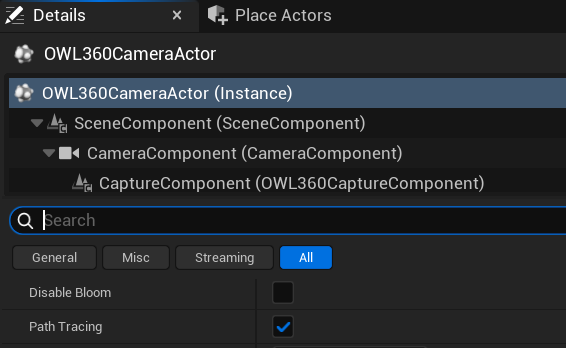
In the
Render Target(unpaused) you will thepath-tracerloading across the cube-faces:
Eventually you will see your final image load:
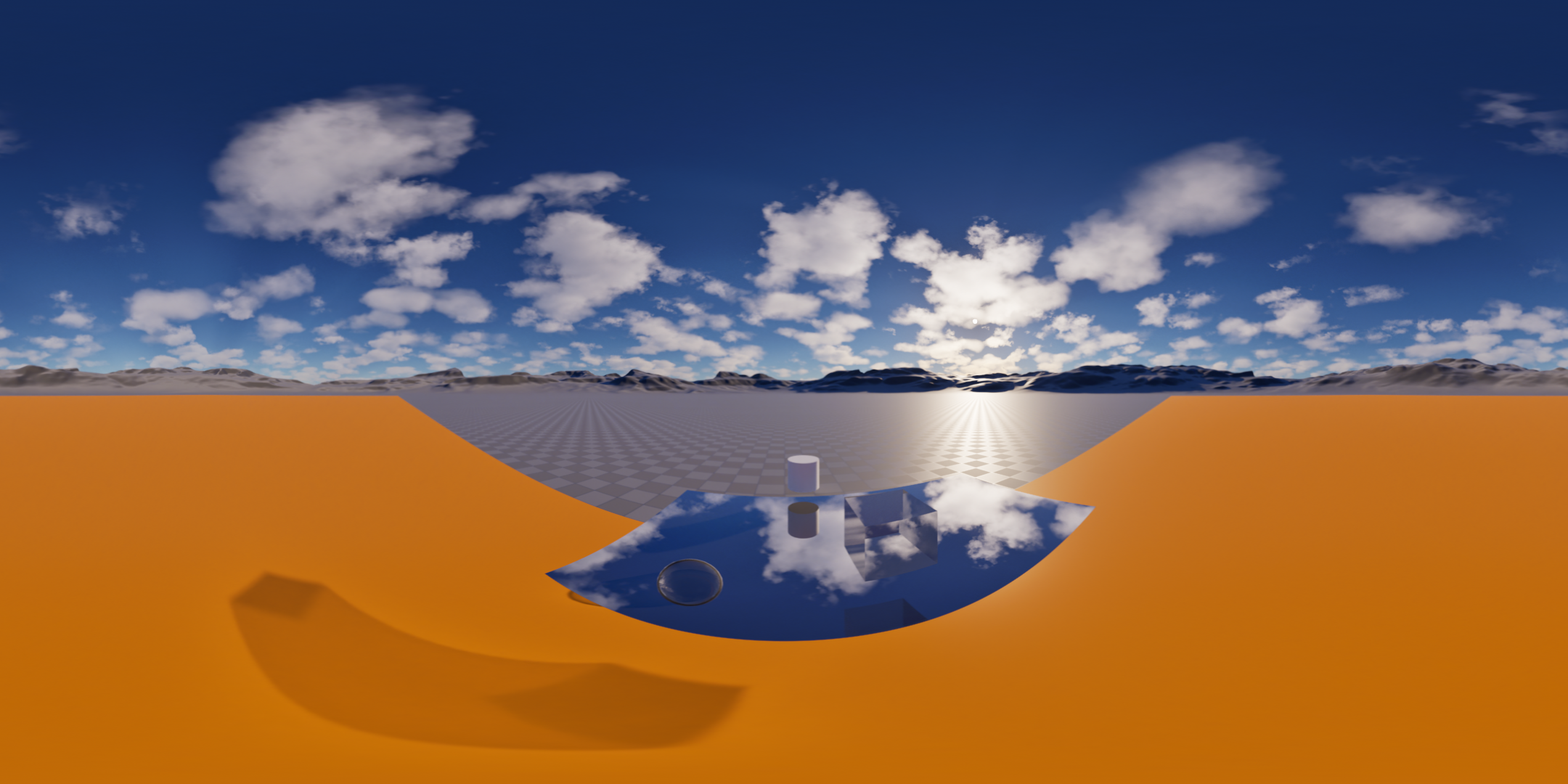
You can use the
Snapshotfunction in the details panel to:Capture and save shots at different angles; or
Capture the same shot with different settings to manage
denoisingorlight rays.
Movie Render Queue Set-Up
OWL 180/ 360 Settings
To enable
Path-Tracingin theOWL 180/360 Render Passplease tick the box in settings: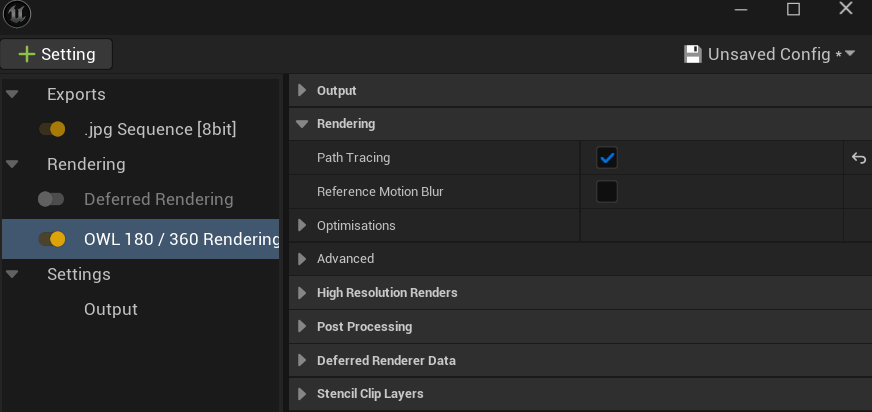

Reference Motion Blur:This determines whethertemporal samplesare taken before or after thedenoiseris run. For moving shots it’s highly recommended to have this ticked:When ticked, any
post-processmotion bluris disabled and thepath-tracerruns allspatialandtemporal samplesand then sends them to thedenoiser.The benefit of this is that you get real cinemative
motion blurwhich appears from averaging all the images taken through temporal samplesThe downside is that any lack of detail and/ or excess brightness in the
spatial samplescan multiply into thetemporal samplescreating errors in thedenoiser.To manage this, you need to set a large number of
temporal samples, because this naturally results in cleanerpixels(so you depend less on thedenoiser).The generally recommended setting is
2048temporaland1spatial samples(you will take aspatial sampleat eachtemporalpoint so you don’t need more than1).This can be very
VRAMheavy because allsampleshave to held in memory before being sent to thedenoiser.
When unticked,
spatial samplesare taken and thendenoisedand thentemporal samplesare taken.This means that the
pixeldata from thespatial samplesgets cleaned up by thedenoiserbefore it’s used for thetemporal sampleswhich removes the natural motion blur.You should only use this if ticking
Reference Motion Blurgives you artefacts (such as problems with particles) that can’t be resolved by adding moretemporal samples.
Anti-Aliasing
Anti-aliasing settings in path-tracer are more simple than in Lumen renders because they just determine the sampling of light rays from each pixel.
The algorithmic work that is done by the anti-aliasing methods in Lumen instead happens in the denoisers in path-tracing.
You need to add the
anti-aliasingsection inMovie Render Queuesettings where you can control individual values (these settings will not be taken from yourpost process volume):
Spatial samplesdetermine the number oflight raysthat are fired at eachpixel.The more like that reaches each part of a
pixel, the more information there is and therefore the higher precision of detail.
Temporal samplescreate multiple versions of eachpixelatsub-frametime periods into which the number ofspatial sample light raysyou have selected are then fired.The more of these different
sub-frameversions you have the more accurately your image will reflect the movement oflight raysthrough your scene over time.
Override Anti Aliasing:This should be set toNone(you are using thepath-tracerrender pipeline).Use Camera Cut for Warm Up:This should be ticked and you need to use yourCamera Cutto addframesbefore your render but you need far lessframes(single digits) than inLumen.Render Warm Up Frames:This should be ticked (so you actually render and discard thewarm up frames) to ensure image stability.Advanced:These settings should both be used. Inpath-tracerthey are very important because they allow simulation of important visual elements without having to render everywarm up framefully, which would take far too long:Render Warm Up Count:This sets the number of GPU cycles which your warm-up will run through before you start your render and so would be used to get thedenoiserready.Engine Warn Up Count:This sets the number of CPU cycles which your warm-up will run through before you start your render and so would be used to getNiagaraor physics moving before your render begins.
Warm-Ups
Warm-ups are essential for getting a high quality render, especially if you have moving images, complex lighting or physics based effects.
In path-tracing you need to use warm-ups differently to in Lumen because it takes so long to render a single frame:
You should still tick
Use Camera Cut for Warm Upbut only increase yourcamera cutin front of your first renderedframeby a single digit number offrames.This ensures that
texturesandassetsspecific to thecamera frustrumare loaded before the render begins.If you are rendering a static shot then only
1 frameshould be fine.If you are rendering a moving shot, then you need at least the number of
framesset inr.NFOR.FrameCountand may need more for a perfect first renderedframe.
You should tick
Render Warm Up Framesso that the pre-renderframesin yourcamera cutactually render which is required to give thedenoisersufficient data.You need to combine this with a
console variableto ensure that not allwarm-up framesare fully rendered otherwise yourwarm-upperiod could be hours.MovieRenderPipeline.NumWarmUpFramesWithTemporalSamplingsets the number offramesfor which you will actually taketemporal samplesusing thepath-tracer.You can set this as low as
1and then increase if moving shots require it.
MovieRenderPipeline.NumWarmUpFramesWithSpatialSamplingsets the number offramesfor which you will actually takespatial samplesusing thepath-tracer.1will almost always be enough for static shots.
Render Warm Up Countis an important measure for static shots but is very time consuming and so should normally be set to a low value, often1.It triggers a set of processes on the GPU which primes lighting, textures and geometry before the first rendered frame begins.
This is a very expensive measure because it has to run the path-tracer for each frame
It is only used for static renders and shouldn’t be used with the
NFOR denoiser.
Engine Warm Up Countis an essential measure that should be set to a relatively high value (90-120).It ensures that particles and physics based objects have a history of movement before your first rendered
framebegins without requiring you to physically render all the previousframes.It should be used for both static and moving shots.
Console Variables
You need to use console variables when using path tracing to refine your settings because they are not all shown in the Movie Render Queue or Editor GUI.
You add these in the console variables settings in Movie Render Queue using the + button for each new variable:
General Recommendations
r.PathTracing.MaxBounces 8Setting it to
8-16speeds up renders significantly with almost no visual loss. If you aren’t getting the lighting you need in darker corners then increase this number.
r.PathTracing.FireflySuppression 1Eliminates single white pixels.
r.PathTracing.FilterWidth 1.5to2.01.5is sharper;2.0is smoother.
r.Streaming.FullyLoadUsedTextures 1Forces the engine to wait until every 16K texture is in VRAM before firing rays. Very important for high resolution renders.
r.PathTracing.RayBias 0.01Fixes weird black dots on curved geometry.
r.PathTracing.VisibleLights 1Ensures that
lightsactually cast light and are visible in thepath-tracedreflections.
r.D3D12.GPUTimeout 0Stops the GPU timing out if a frame takes too long. This might lead to the machine being frozen for a while but normally the frame will get rendered. Very important for high resolution renders.
r.PathTracing.GPUStackSize 8000If you have very complex materials (glass inside glass), increasing this prevents "black spots" where the
light raygives up.
Suggested Settings
In most renders the following combination of anti-aliasing samples and denoiser will be the most effective.
These settings are in addition to the general console variables recommended above.
Moving Shots:
Moving shots have more straight-forward settings recommended by Epic:
Use
NFORasdenoiserand inconsole variablesset:r.PathTracing.SpatialDenoiser.Type 1: (temporal denoiseris selected)r.PathTracing.TemporalDenoiser.Name NFOR: (NFORis selected)r.NFOR.FrameCount2: (it will reference2 framesbehind,2in front and the currentframeto createsamples).r.NFOR.Temporal.NumSamples 8: This determines the number ofsamplesthat thedenoisertakes for eachpixelfrom surroudingpixels/frames.For high speed or high resolution content you may need to increase the value to
16.
Spatial samples=1,Temporal samples=2048.Reference Motion Bluris ticked.Use Camera Cut for Warm Upis ticked with2pre-renderframesin thecamera cut.The number of
frameshas be at least the value set inr.NFOR.FrameCount.If your first
framesdon’t capture the motion like you need you will need to make your pre-rendercamera cutlonger.
Render Warm Up Framesunticked.Render Warm Up Count:0Engine Warn Up Count:120MovieRenderPipeline.NumWarmUpFramesWithTemporalSampling2MovieRenderPipeline.NumWarmUpFramesWithSpatialSampling2
Static Shots:
Static shots can be approached in different ways and can often still benefit from using temporal samples/ denoiser and camera cuts so that the position of moving elements like particles, foliage and lights looks more natural in the shot.
Approach 1: All Static:
This approach uses the static denoiser with only spatial samples, but still has warm-up/ camera cut. This will be very VRAM heavy.
Use
NNEas denoiser and inconsole variablesset:r.PathTracing.SpatialDenoiser.Type 0(spatial denoiseris selected).r.PathTracing.Denoiser.Name NNEDenoiser(NNEis selected).
Try
spatial samplesof1024and see if the result is what you need, if not increase to2048.Temporal samples=1Reference Motion Bluris unticked.Use Camera Cut for Warm Upis ticked with1pre-render frame in thecamera cut.Render Warm Up Framesunticked.Render Warm Up Count:1Engine Warn Up Count:200MovieRenderPipeline.NumWarmUpFramesWithSpatialSampling1
Approach 2: Static and Temporal:
This approach uses a combination of spatial and temporal samples with the temporal denoiser to better capture the position of moving elements:
Use
NFORas denoiser and inconsole variablesset:r.PathTracing.SpatialDenoiser.Type 1(temporal denoiseris selected).r.PathTracing.TemporalDenoiser.Name NFOR(NFORis selected).r.NFOR.FrameCountto1(it will reference1 framesbehind,1in front and the currentframeto createsamples).
Spatial samples=32,Temporal samples=32Reference Motion Bluris ticked.Use Camera Cut for Warm Upis ticked with1pre-render frame in thecamera cut.Render Warm Up Framesunticked.Render Warm Up Count:0Engine Warn Up Count:120MovieRenderPipeline.NumWarmUpFramesWithTemporalSampling1MovieRenderPipeline.NumWarmUpFramesWithSpatialSampling1
Trouble-Shooting
Console Variables
Epic says "A lot of people don’t realize that everything in the “Game Overrides” section in MRQ is having an effect on your render even if you don’t have it active in the GUI."
Epic recommends:
Remove all
Console Variableoverrides unless you have a specific reason you are including them.If you see any large low-frequency noise, that's from
Denoisers. You have to find the rightDenoiser(Ambient Occlusion, Global Illumination, Reflections, etc.) and shut it off.If you disable all the options in the
Game Overridessection, aside fromFlush Grass Streaming, that will get you as close as possible to what you are seeing in the EditorViewport(assuming you don’t have anyCVaroverrides in MRQ).The geometry LOD settings here will NOT override anything Nanite. They are only for non-nanite actors.
Example Renders
Was this helpful?
Still need help? Ask the team